Create Expense
About
Going to show you how to create an expense in Goalpense.
Video
Tutorial
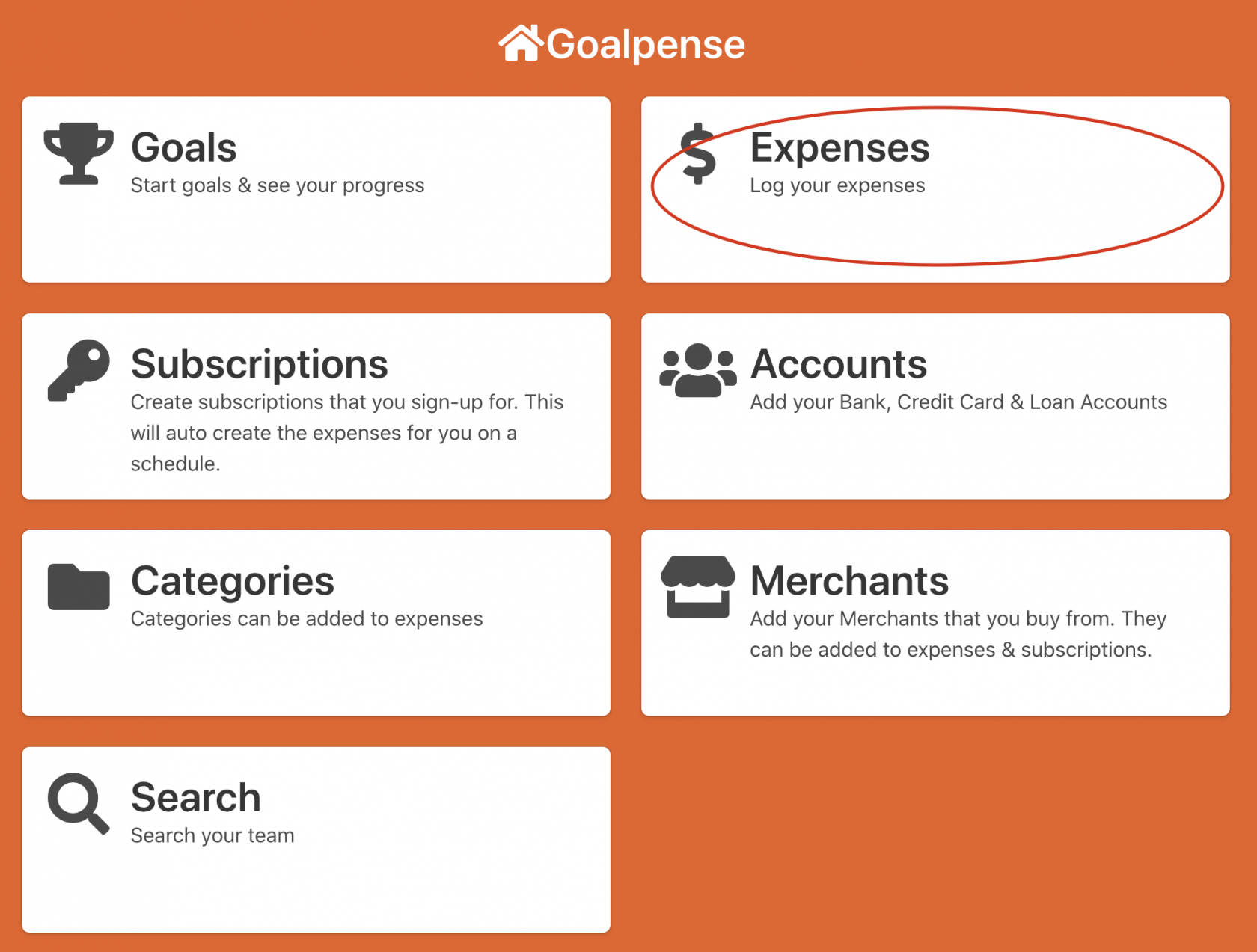
The first step to create an expense is to go to the Expenses on the Dashboard:
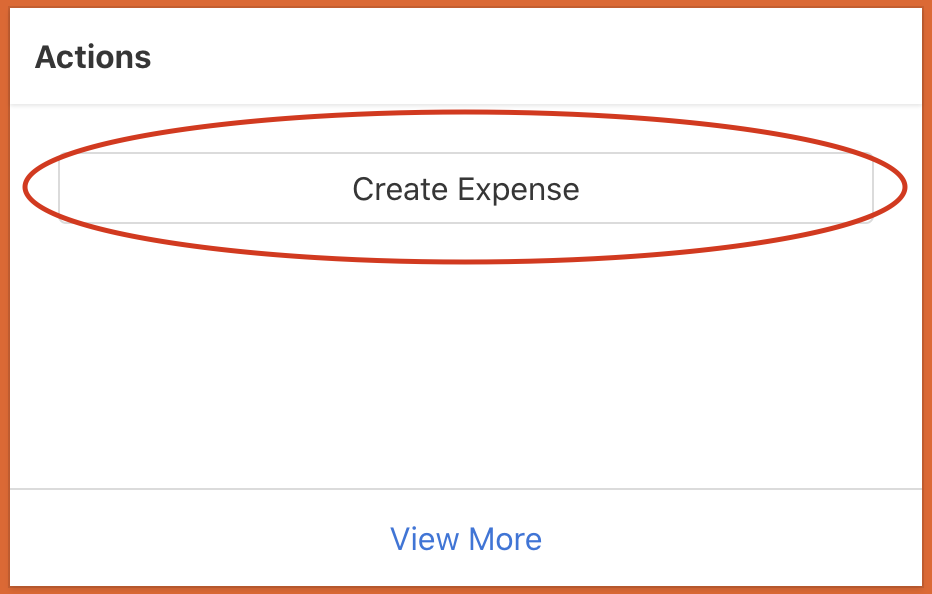
Now you will see Create Expense under Actions Box.
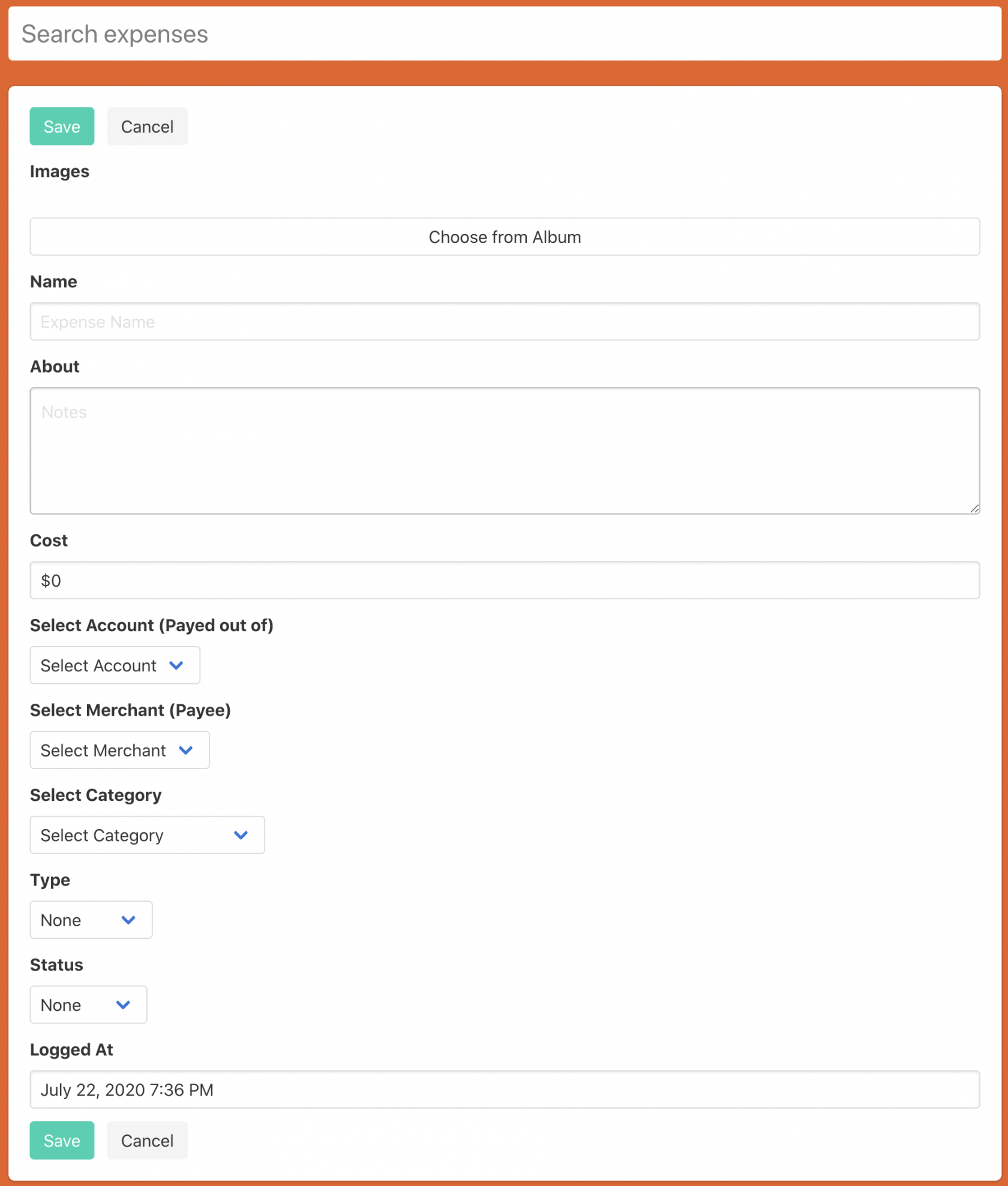
Fields
- Search Expenses Box - This can search your current expenses that you have in Goalpense
- Images - Upload images for this deal.
- Name - A unique name to know what this deal is about.
- About - A brief description of what this deal is about.
- Cost - How much did this expense cost you.
- Select Account - Link a current Account to this expense.
- Select Merchant - Link a current Merchant to this expense.
- Select Category - Link an existing Category to this expense.
- Type - Is this expense Personal or Business?
- Status - Are you buying? Is this Income? Is this a transfer?
- Logged At - Pick the date you recorded this expense.
Once you have field out everything you can press Save.
You can see the expenses on the expenses home.
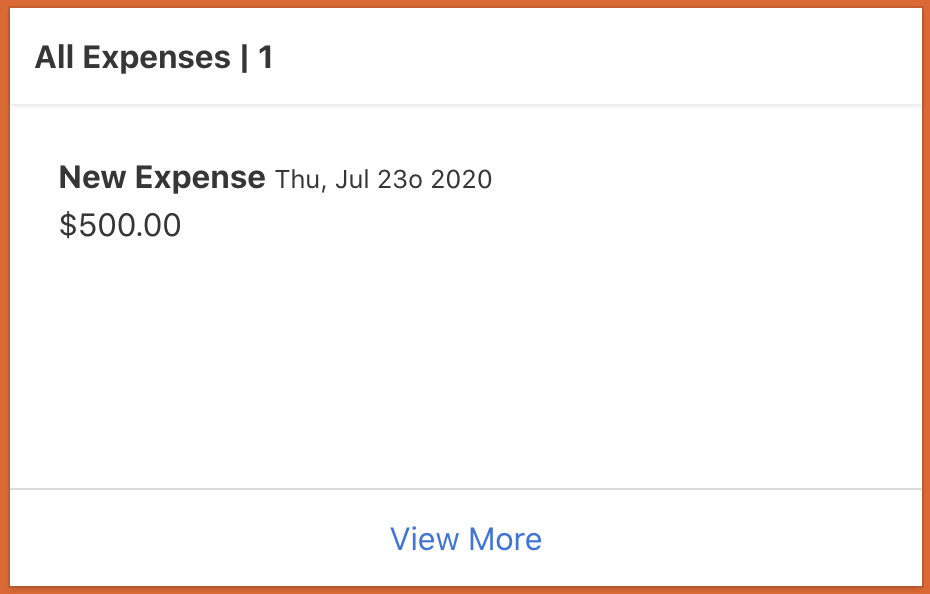
Congrats you have now created the expense!